

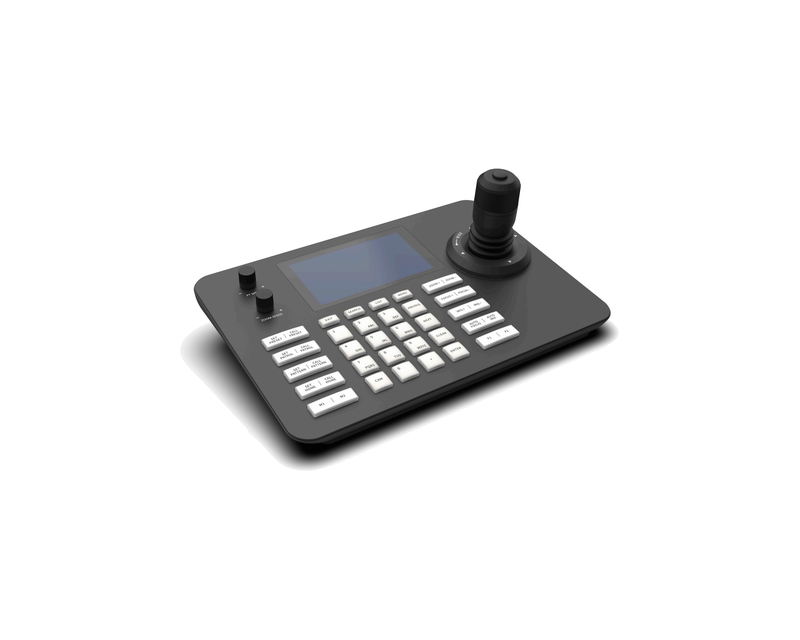
Cam Joystick ICKB06 is a network control keyboard with a 5-inch HD display, ONVIF search for 254 cameras and IP, RS232, RS422 and RS485 control.
The ICKB06 is a network control keyboard for operators who have to watch many cameras at once. A 5-inch display on the desk shows the live picture of the camera under control, while the joystick and the dedicated preset, patrol and pattern keys drive pan, tilt, zoom, focus and iris directly — no mouse and no PC in the loop.
An SSD202D processor drives the 1280 × 720 screen, so framing and focus can be judged without turning to a wall monitor. Up to 254 cameras are stored on the keyboard, and switching between them is a CAM key press plus a list number. Devices are discovered over ONVIF with the built-in search, or added manually by IP address, port and credentials — which means third-party PTZ cameras from other vendors can share the same desk as Reach cameras.
Four control paths are available — IP, RS232, RS422 and RS485 — so an analogue PTZ installation and a new IP camera network can be driven from one keyboard while a site is being migrated in stages. On the RS422 bus, up to seven devices can be chained.
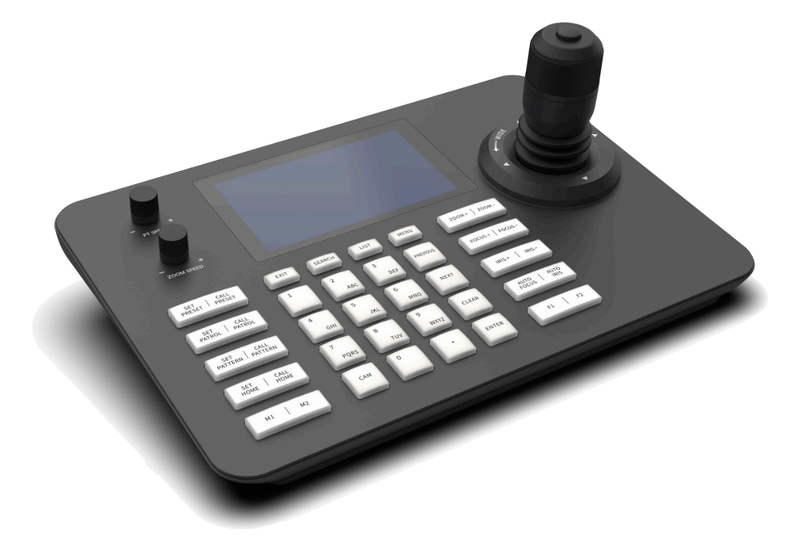
ICKB06 network control keyboard — 5-inch display, three-axis joystick with zoom ring and backlit function keys.
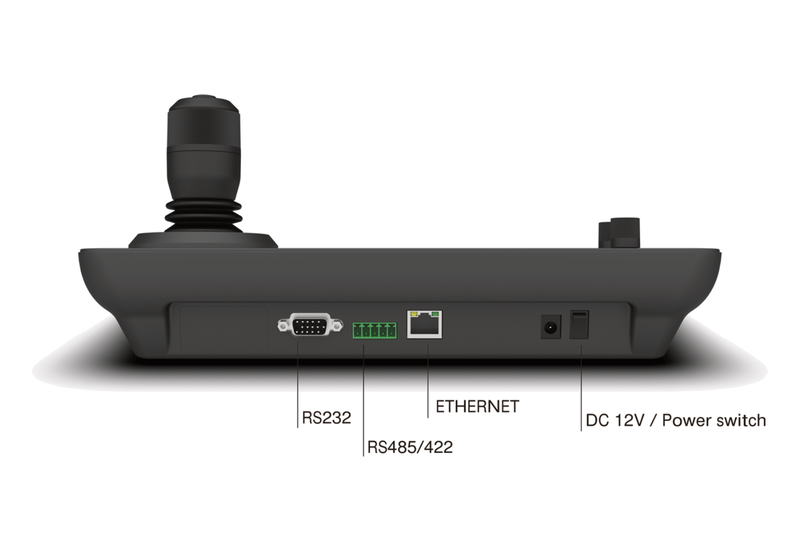
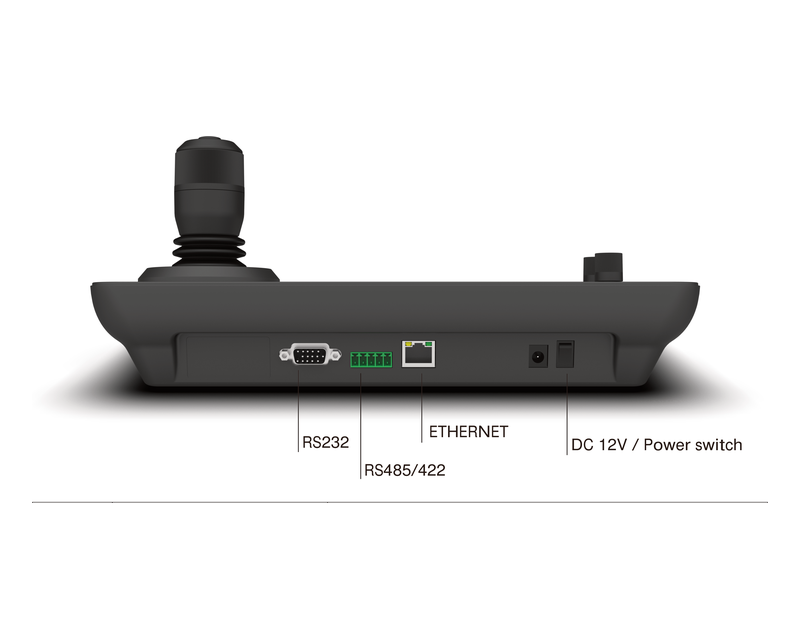
Rear connections: RS232 on DB9, Ethernet on RJ45, RS485/422 on a Phoenix screw terminal, and 12 V DC input with the power switch.
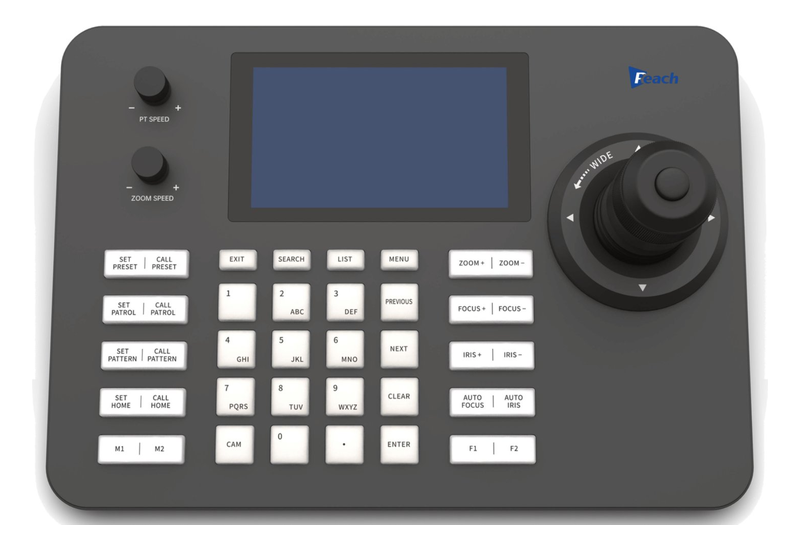
Key layout: presets, patrols, patterns and the home position on the left, numeric and letter keys in the centre, lens control and camera switching on the right.
Every camera action is one key press away. The table below lists what each key group does on the ICKB06.
| Key group | What it does |
|---|---|
| SET PRESET / CALL PRESET | Store or recall a preset position. Press the key, type the preset number, aim the camera with the joystick and confirm with ENTER. Up to 99 presets per camera. |
| SET PATROL / CALL PATROL | Build and run a patrol (cruise) route from existing presets, with speed and dwell time set per point. The last point is closed with SET PATROL instead of ENTER. |
| SET PATTERN / CALL PATTERN | Record and replay a scan path for cameras that support pattern tours. |
| SET HOME / CALL HOME | Define a guard position and send the camera back to it after manual moves. |
| SEARCH / LIST / MENU | Search the network for ONVIF devices, review and edit the stored device list, or open the keyboard menu for manual add and system settings. |
| CAM / PREVIOUS / NEXT | Switch cameras: CAM + list number + ENTER, or step through the list with PREVIOUS and NEXT. |
| ZOOM ± / FOCUS ± / IRIS ± | Lens control from the right-hand key cluster; AUTO FOCUS and AUTO IRIS return the lens to automatic. |
| 1 – 9 / m1 / m2 / F1 / F2 | Numeric entry for presets and passwords (repeated presses cycle letters), plus two custom keys and two reserved function keys. |
| No. | Port | Connector | Specification |
|---|---|---|---|
| 1 | Power switch / power port | DC jack, 5.5 / 2.1 mm | 12 V DC, 2 A (±10 %) |
| 2 | Network port | RJ45 | Ethernet, PoE 802.3af / 802.3at / 802.3bt |
| 3 | RS485 / RS422 port | Phoenix screw terminal | 1 × RS485 / RS422, up to 7 devices |
| 4 | RS232 port | DB9, male | 1 × RS232 |
| Item | Specification |
|---|---|
| Model | ICKB06 |
| Product type | Network monitoring control keyboard |
| Display | 5-inch HD LCD |
| Display resolution | 1280 × 720 |
| Processor | SSD202D |
| Camera capacity | 254 devices |
| Device discovery | ONVIF search, or manual add by IP address and port |
| Control interfaces | IP (ONVIF), RS232, RS422, RS485 |
| Bus capacity | Up to 7 devices on an RS422 bus |
| Preset positions | Up to 99 per camera |
| Camera functions | Pan, tilt, zoom, focus, iris, presets, patrol, pattern, home |
| Power input | 12 V DC, 2 A (±10 %), 5.5 / 2.1 mm jack |
| PoE standards | 802.3af / 802.3at / 802.3bt |
| Maintenance | Web-based firmware upgrade, factory reset and restart |
| Mounting | Desktop |
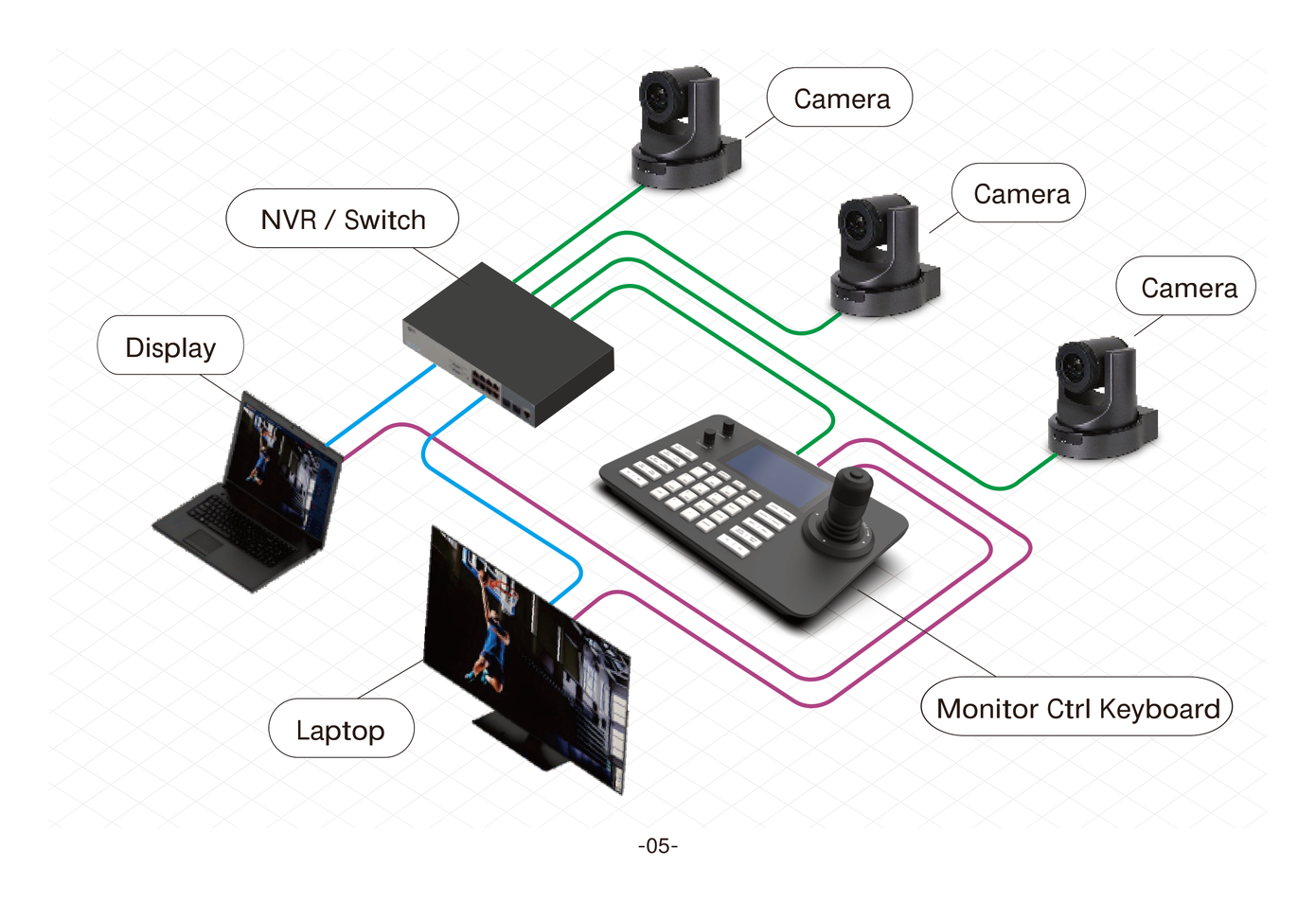
Network topology: cameras and the ICKB06 sit on the same switch, camera video is shown on the keyboard display and can be presented on a monitor, and a laptop reaches the keyboard web page for maintenance.
Wiring the keyboard into a camera network takes four steps:
The keyboard and the cameras must sit in the same network segment during commissioning. Once a camera is added it stays in the device list, so it can be called again with CAM + number + ENTER even after the network has been re-addressed.
Dimensions and net weight are not fixed in the current product manual — ask us for the latest mechanical drawing when the keyboard has to fit a console cut-out or a rack shelf.
 Tel:+86 13265602904